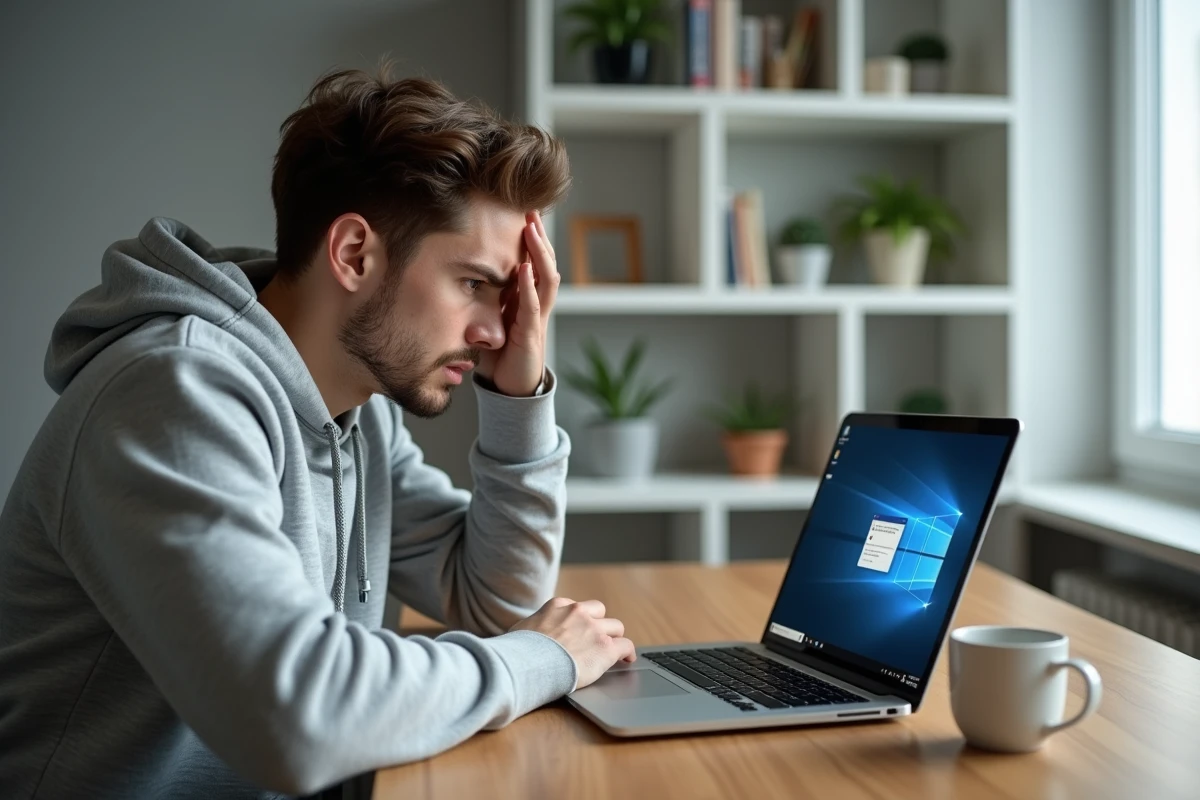
Chrome closing unexpectedly on Windows 11, without error messages or warnings: this phenomenon is affecting an increasing number of users since the 23H2 and 24H2 builds of the system. Reddit forums, CNet France, and Microsoft communities are accumulating similar testimonies. The browser closes after waking from sleep, during video playback, or simply when switching to another application.
The problem is not limited to an isolated case, and its causes are often overlapping.
Intel and AMD Graphics Drivers: The Most Underestimated Cause
The majority of troubleshooting guides point towards reinstalling Chrome or removing extensions. These solutions may work, but they overlook a cause documented by the manufacturers themselves.
In 2024, Intel and AMD acknowledged in their release notes several bugs in graphics drivers for Windows 11. These bugs cause crashes of Chromium-based applications during hardware acceleration. The symptoms match exactly the descriptions from users: Chrome closes without a message, especially during YouTube or Netflix playback, when using multiple screens, or at the moment of a window change.
To understand why Chrome closes on its own on Windows 11, you need to check the version of the installed graphics drivers. An outdated or poorly updated driver after switching to 23H2/24H2 can cause these repeated closures, even on a recent machine.
The most direct action is to temporarily disable hardware acceleration in Chrome (Settings > System > “Use hardware acceleration when available”). If the closures stop, the graphics driver is the culprit. You should then download the latest version directly from the Intel or AMD website, not from Windows Update, which sometimes distributes older versions.
Antivirus and Security Software Closing Chrome on Windows 11
Publishers like ESET and Bitdefender released bulletins in 2024 and 2025 reporting incompatibilities with certain builds of Windows 11. Their real-time protection modules, particularly EDR (Endpoint Detection and Response) components, may interpret certain Chrome processes as suspicious and terminate them.
The result is the same: Chrome closes on its own, sometimes during browsing, without any notification from the antivirus. The user only sees a disappearing browser.
- Check the antivirus logs (in the “quarantine” or “blocked events” section) to see if chrome.exe appears there
- Update the security solution to the latest version compatible with the current build of Windows 11
- Test by temporarily disabling the web protection module or code injection in browsers
Field reports vary on this point: some users resolve the issue by changing antivirus, while others simply wait for the publisher’s corrective update. Bitdefender and ESET have fixed the most critical cases in their recent versions, but enterprise security modules may still pose problems.
Windows 11 Memory Integrity and Driver Compatibility
Windows 11 enables a feature called “Memory Integrity” (formerly HVCI) by default. This protection prevents the loading of unsigned or incompatible drivers as deemed by the kernel. On certain configurations, this causes Chrome to close immediately upon launch or after waking from sleep, without any visible error message.
Microsoft’s documentation confirms that old drivers or poorly signed third-party components can trigger this behavior. The issue has been exacerbated by cumulative updates in March and April 2024.
How to Check if Memory Integrity is Blocking Chrome
Open Windows Security > Device Security > Core Isolation. If “Memory Integrity” is enabled and incompatible drivers are listed, these drivers may interfere with Chrome. Temporarily disabling them can confirm this hypothesis.
The long-term solution involves updating the drivers reported as incompatible. Permanently disabling memory integrity is not recommended: this feature protects against code injection attacks at the kernel level.
Corrupted Chrome Profile: The Diagnosis That Forums Rarely Forget
A damaged Chrome user profile remains a frequent cause of spontaneous closures. After a power outage, a system crash, or an interrupted Windows update, the profile files can become inconsistent.
- Navigate to %LOCALAPPDATA%GoogleChromeUser Data in File Explorer
- Rename the “Default” folder to “Default.bak” to force Chrome to create a new profile
- Restart Chrome and check if the problem persists
- If the browser works normally, reimport bookmarks and extensions from the saved profile
This action will lose local settings (installed extensions, tab layout), but data synchronized via the Google account will be automatically retrieved upon reconnection.
Clean Reinstallation of Chrome
If renaming the profile is not enough, a complete reinstallation after deleting the User Data folder removes any remaining corrupted files. Simply uninstalling via Windows does not delete this folder, which explains why many users report that “reinstalling Chrome changes nothing.”
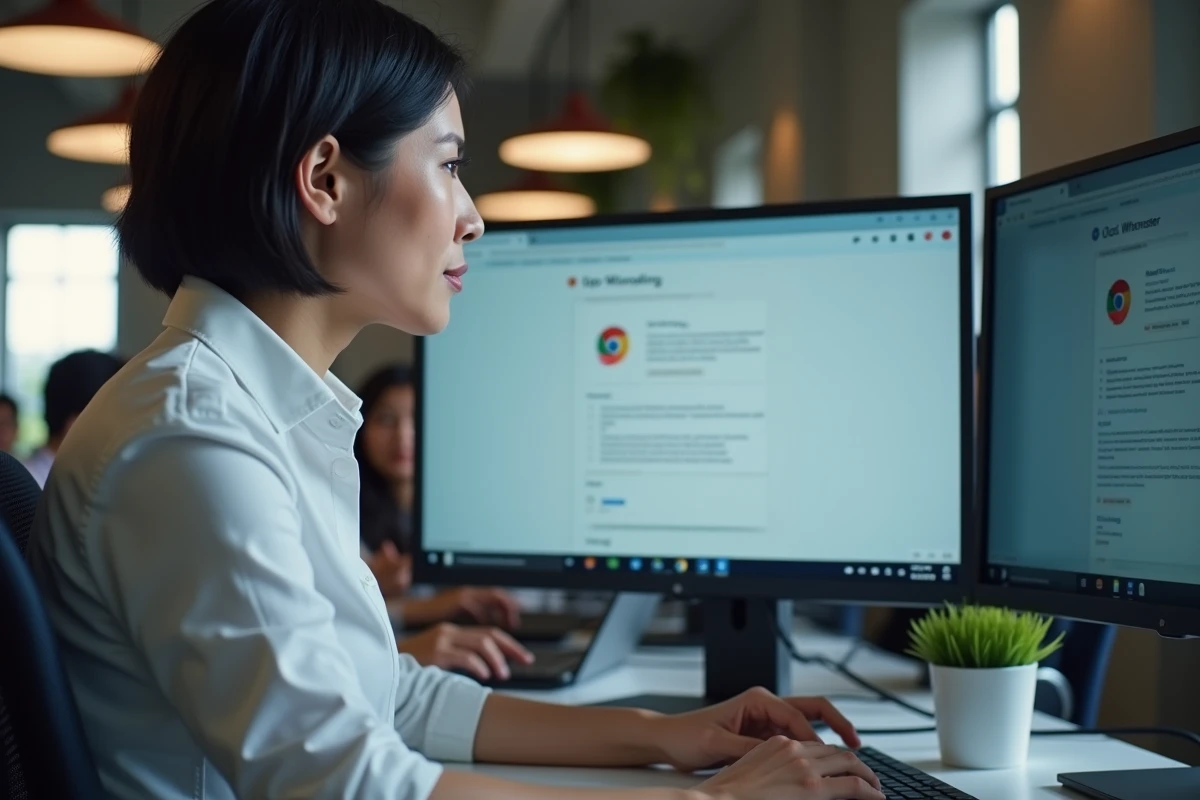
The available data does not always point to a single cause. On some machines, the problem results from a combination of outdated drivers, overly aggressive antivirus, and a profile weakened by successive updates. Addressing each issue separately, starting with graphics drivers and the memory integrity feature, remains the most reliable method to isolate the true origin of Chrome closures on Windows 11.